View, Monitor, and Share Your Livestream
Use the AIOZ Stream Dashboard to monitor stream status and performance, adjust stream settings, and share your livestream via a public link or embed code.
TERMINOLOGY NOTE: In this guide, a Streaming Session is the active live broadcast instance shown in the dashboard. Your streaming software connects using the RTMP/Server URL and Stream Key.
Access the AIOZ Stream Dashboard
To manage your active broadcast:
- Log in to the AIOZ Stream Dashboard (opens in a new tab).
- For an active live stream, keep your streaming software (e.g., OBS) running and connected.
- In the left sidebar, select Live Streaming to open the list of Stream Keys and active sessions.
- Click on the active Streaming Session row to open the player view.
NOTE: Past livestreams are only available for replay if Save Stream to Archive When Finished was enabled during the broadcast.
If you started streaming and do not see an active session yet, wait a few seconds and refresh the dashboard. The session may appear after AIOZ Stream detects incoming video.
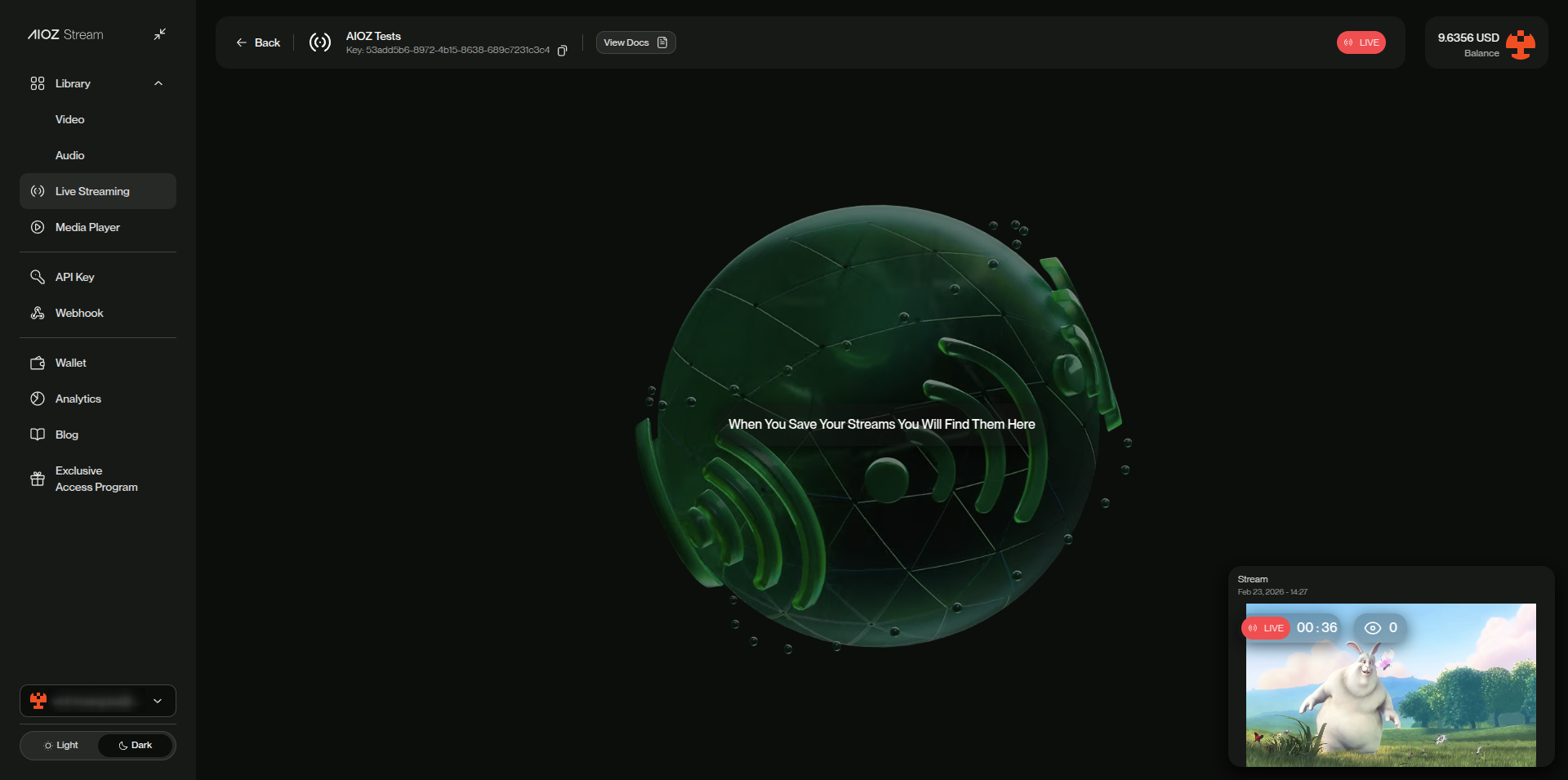
The Live Streaming dashboard player view opened from an active Streaming Session row.
Monitor and Control
These controls affect how you monitor and manage the livestream playback and session settings from the dashboard player view.
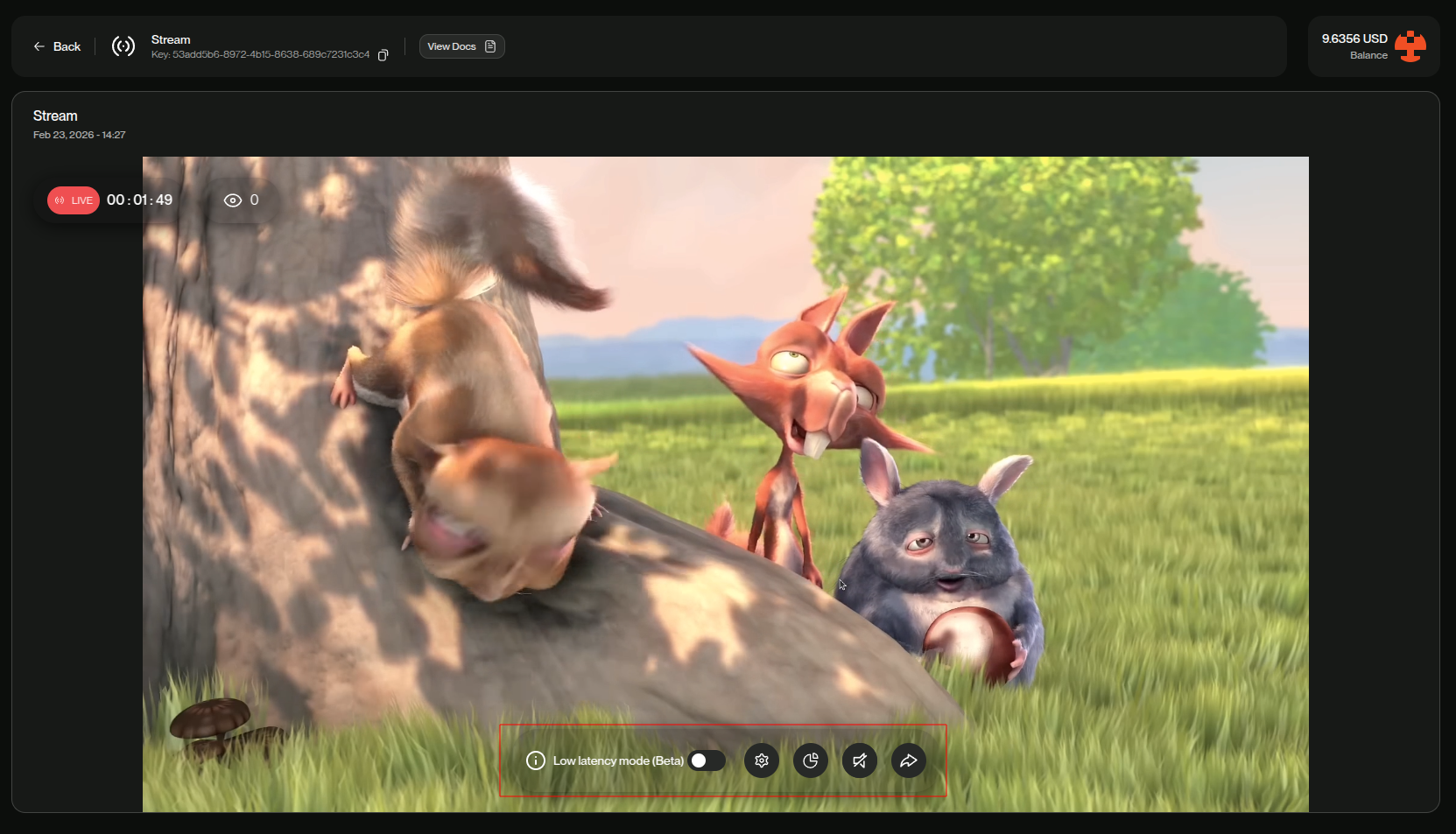
The player toolbar controls used to monitor and manage the livestream
- Low Latency Mode (Beta): Enable this for interactive broadcasts where delay matters (e.g., Q&A, auctions, or gaming). It reduces the delay between you and your audience.
- Settings: Open Stream Settings to view and copy stream credentials and session details.
- Statistics: Open Stream Health to view real-time ingest and playback telemetry.
- Audio: Mute/unmute or adjust the volume.
- Share: Copy the public stream link or access embed code to publish the livestream on your site.
PRO TIP: Ensure "Low Latency Mode" is communicated to your viewers if interaction speed is critical for your content type (like auctions or gaming).
Configure Stream Settings
SECURITY NOTE: Do not share screenshots or screen recordings that reveal your Stream Key. If the key is exposed, rotate or regenerate it before your next broadcast.
Click the Settings (edit) icon in the player toolbar to open the Stream Settings panel. From here, you can update the stream settings and copy your Stream Key and RTMP URL.
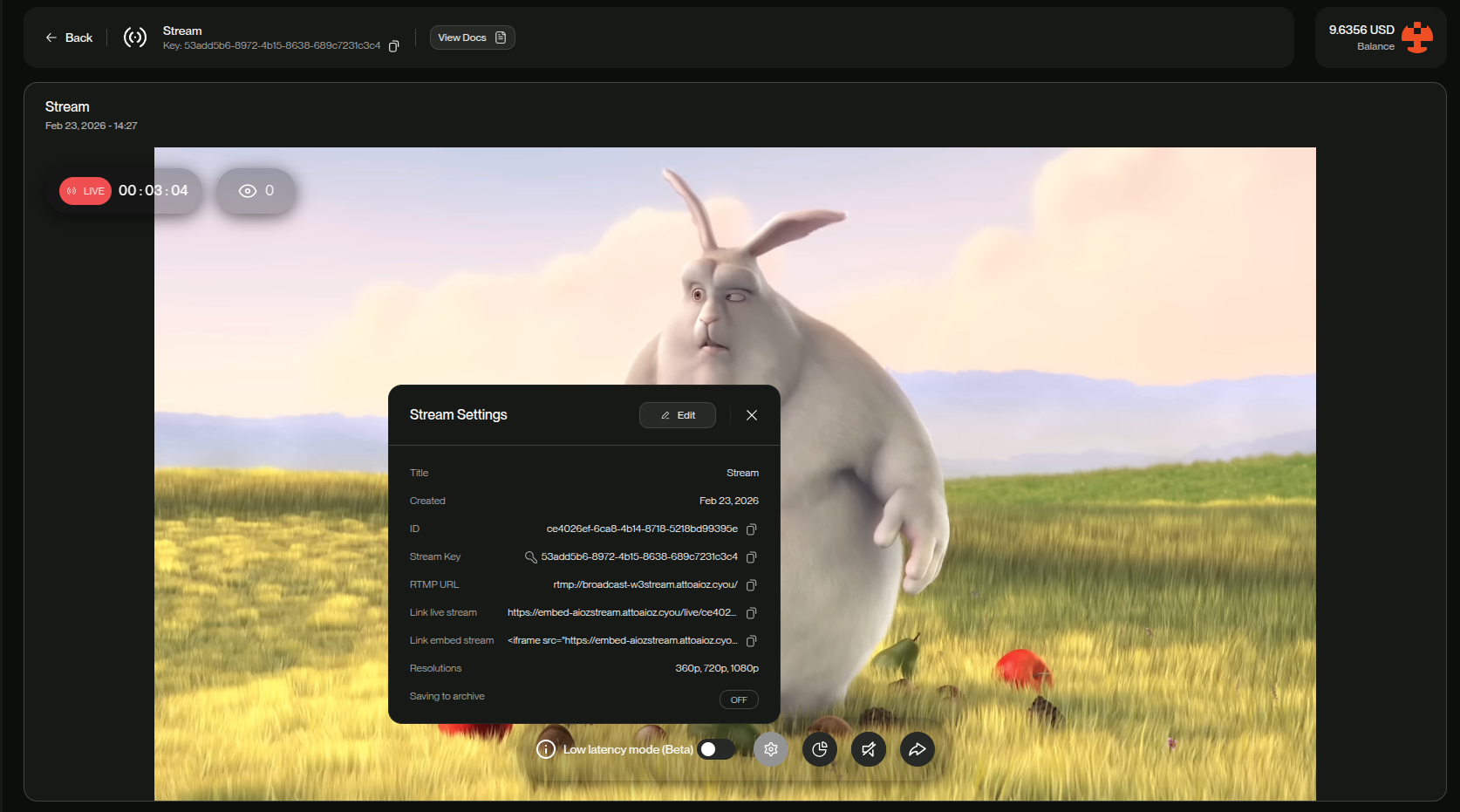
The Stream Settings panel opened from the Settings icon.
| Setting | Description |
|---|---|
| Title (editable) | The display name of your livestream. |
| Stream Key & RTMP (read-only) | Credentials used by your streaming software (e.g., OBS Studio or PRISM Live Studio) to connect and broadcast. |
| Public Playback URL (read-only) | The public playback URL where viewers can watch your livestream. |
| Resolutions (read-only) | The video qualities available to viewers (e.g., 1080p, 720p). |
| Saving to Archive (read-only) | Indicates whether the livestream will be saved as a video after it ends. |
Analyze Stream Health
Click the Statistics icon to open the telemetry panel. This helps you troubleshoot connection issues.
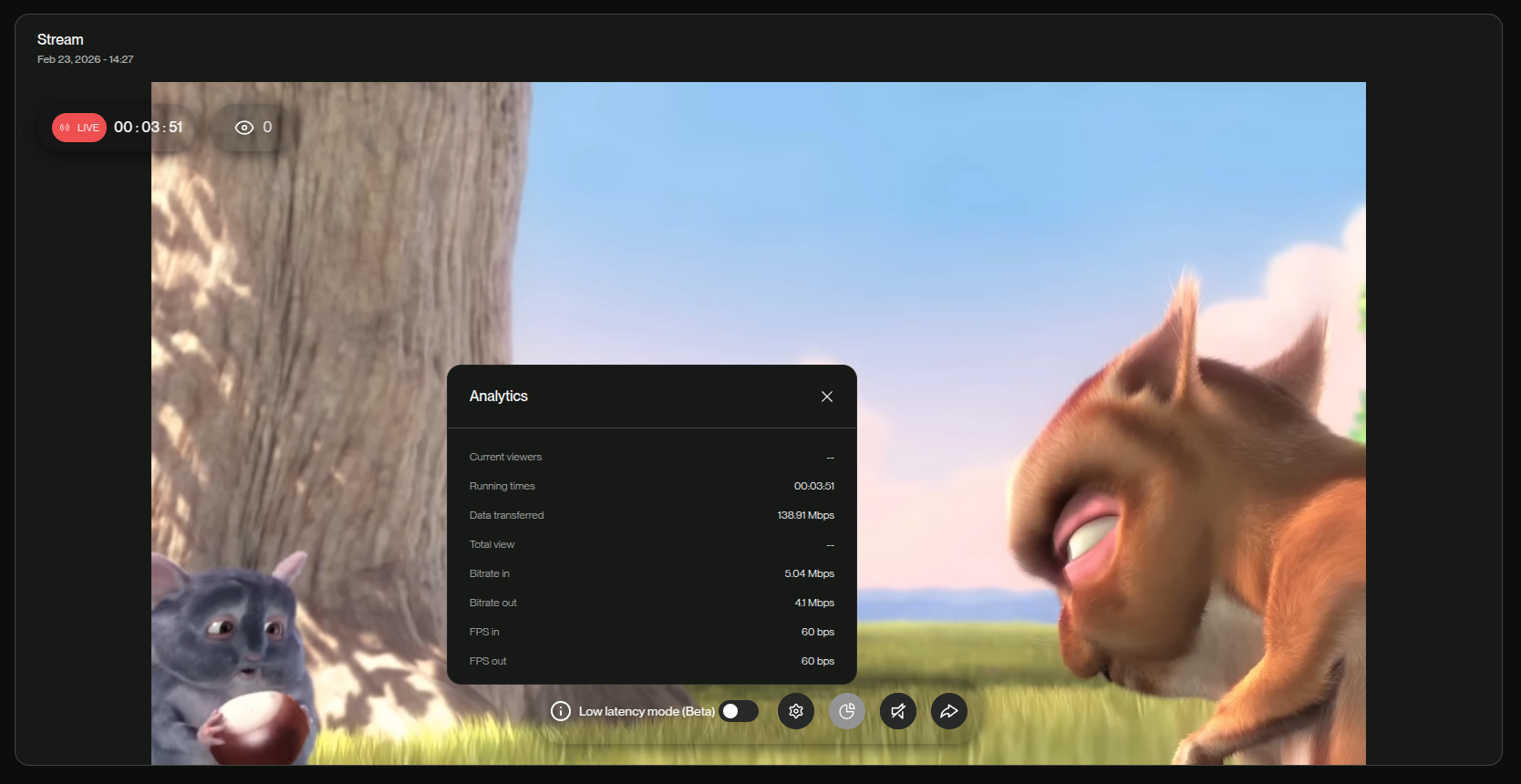
The Statistics (Analytics) panel showing real-time stream health metrics
- Current Viewers: Number of people currently watching.
- Bitrate (In/Out): The speed of data transfer. Stable bitrate indicates a good connection.
- FPS (In/Out): Frames Per Second. Higher is smoother (usually 30 or 60 fps).
How to interpret these metrics
Use the rules below to quickly diagnose stream quality issues:
| Metric | Diagnosis | Recommended Action |
|---|---|---|
| Bitrate (In) | If this value fluctuates heavily or drops, your upload is unstable. | Reduce bitrate or switch to a more stable network. |
| Bitrate (Out) | If this stays noticeably lower than Bitrate (In), viewers may be receiving a constrained stream. | Check playback quality, network conditions or try lowering your output settings. |
| FPS (In) | If this is consistently below your target (e.g., below 30), your encoder or device is overloaded. | Lower resolution/FPS or adjust encoder settings in your streaming software. |
| FPS (Out) | This is consistently lower than FPS (In). Viewers may be receiving reduced playback performance. | Check playback quality or lower output settings. |
NOTE: Only the listed metrics are currently exposed. If viewers drop while Bitrate or FPS remain stable, the issue may be content-side rather than technical.
Share Your Stream
Ready to go public? You have two main ways to share your broadcast. The Public Playback URL is publicly accessible to anyone with the link unless access control is enabled for your account or stream.
- Direct Link: Copy the Public Playback URL from the Stream Settings panel and post it on social media.
- Embed Code: In the dashboard player view, open Share and copy the Embed Code.
- Integration: Paste the copied
<iframe ...></iframe>code into your website's HTML where you want the player to appear.
- Integration: Paste the copied