Mobile PRISM Live Studio Custom RTMP Setup for AIOZ Stream
Introduction
Use this guide to configure PRISM Live Studio for streaming to AIOZ Stream from a mobile device using Custom RTMP. You will connect PRISM to AIOZ Stream, enter your stream credentials, and apply recommended video settings before going live.
Before you start
Before configuring PRISM Live Studio, make sure you have the following:
- An AIOZ Stream account with access to the AIOZ Stream Dashboard (opens in a new tab).
- Your Server URL (RTMP URL) and Stream Key for streaming to AIOZ Stream.
- A stable internet connection with enough upload bandwidth for your target quality (e.g., 720p or 1080p streaming).
- Camera and microphone permissions enabled on your operating system (if you plan to use them).
- Sufficient battery level or external power for longer streams.
- PRISM Live Studio installed on your mobile device.
NOTE: You do not need to manually create a livestream in the AIOZ Stream Dashboard (opens in a new tab) before going live. AIOZ Stream can create it automatically after you start streaming with valid credentials.
Tested with: PRISM Live Studio app version 5.1.5 on Android or 3.10.2 on iOS.
SECURITY NOTE: Keep your Stream Key private. Do not share it in screenshots, screen recordings, or public channels.
Download the App
Install PRISM Live Studio on your mobile device:
This guide was tested with PRISM Live Studio version 5.1.5 on Android or 3.10.2 on iOS. If your app interface looks different, update the app and follow the same flow.
Connect to AIOZ Stream
- Open the app and select the Live mode.
- Tap the destination selector on the main Live screen to choose where the stream will be sent.
NOTE: Depending on your PRISM Live Studio version, this control may show a platform icon or a status label.
- After selecting Custom RTMP, PRISM Live Studio opens the RTMP Settings screen where you can enter your stream credentials.
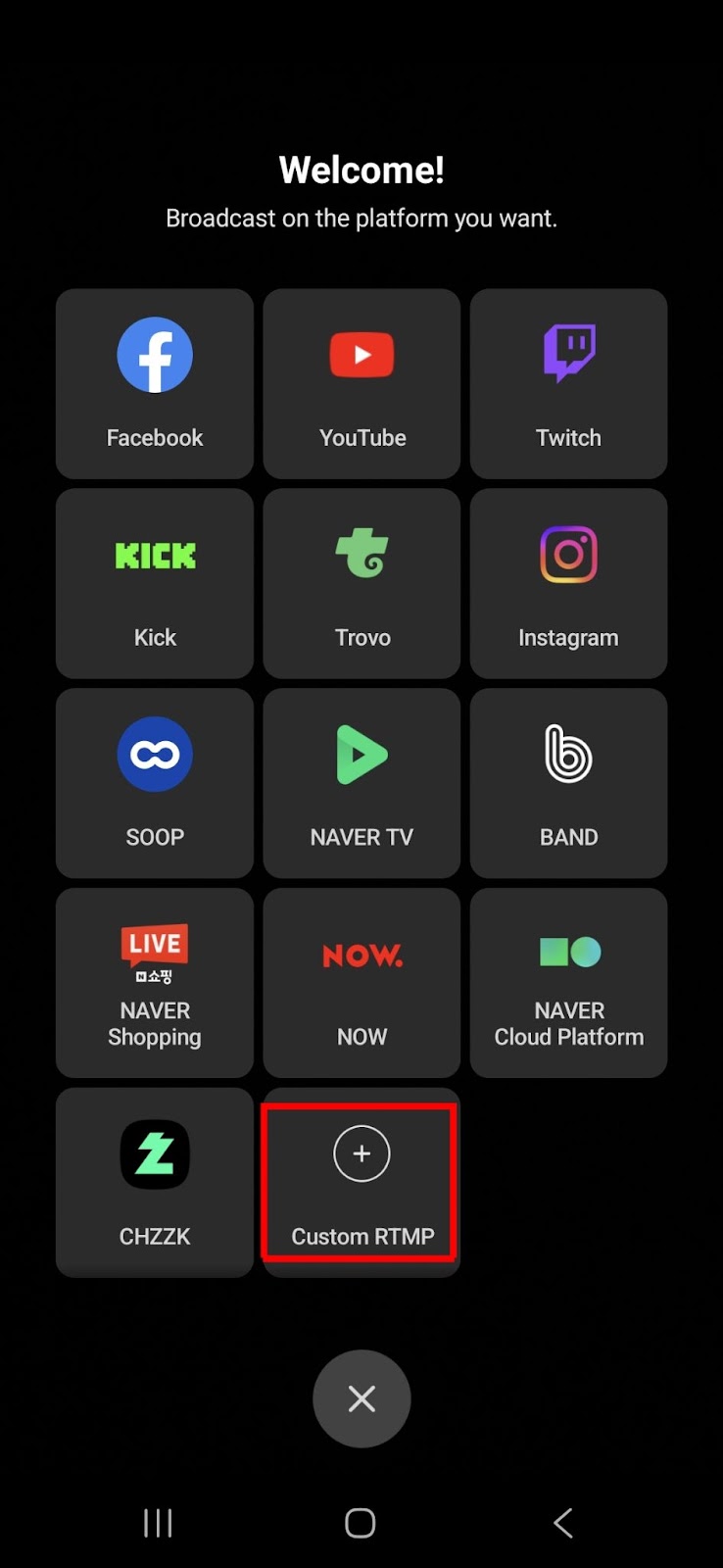
PRISM Live Studio platform selection screen with Custom RTMP selected.
Enter Stream Credentials
Enter your stream credentials in PRISM Live Studio. You can find your stream credentials in the AIOZ Stream Dashboard (opens in a new tab).
- Stream Name: Enter a recognizable name (e.g., "AIOZ Stream").
- Stream URL (PRISM field): Paste your Server URL (RTMP URL).
- Stream Key: Paste your unique Stream Key.
- Tap Save.
IMPORTANT: Do not change the URL protocol, domain, or path unless explicitly instructed.
SECURITY NOTE: Do not share your RTMP Settings screen if the Stream Key is visible. If your Stream Key is exposed, regenerate it before going live again.
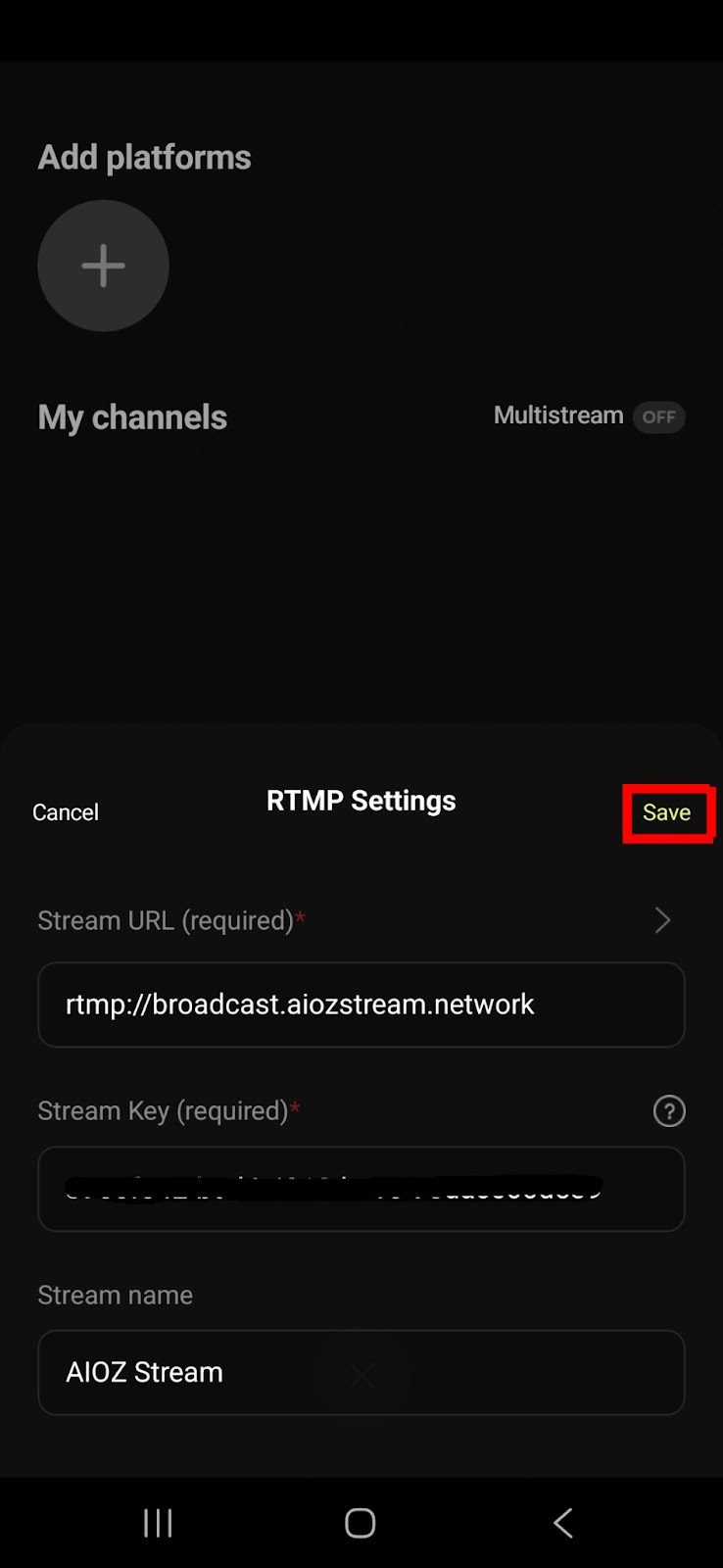
PRISM Live Studio RTMP Settings screen showing the fields for Stream URL and Stream Key.
Optimize Video Quality
Before going live, adjust your output settings to ensure smooth playback.
- Swipe left on the main screen to open the stream quality panel. If available in your app version, you can also tap the resolution shortcut (e.g., 1080p) to open the same settings.
- Configure the following recommended settings:
These settings are a starting profile for mobile livestreaming with PRISM Live Studio under stable network conditions. Adjust resolution and bitrate based on your network stability, device performance, and target stream quality.
| Setting | Recommendation |
|---|---|
| Video Quality | Adaptive (Keep Adaptive unless you are troubleshooting unstable quality and need to manually control output) |
| Resolution | 1080p (if on Wi-Fi) or 720p (if on 4G/5G) |
| Frame Rate | 30 fps |
| Bitrate | 4000 Kbps (1080p) or 2500 Kbps (720p) |
| Keyframe Interval | 1 second |
NOTE: Mobile streaming can consume significant bandwidth and battery power. Use stable Wi-Fi when possible, or a strong 4G/5G connection with sufficient upload bandwidth.
For longer streams, keep the device charged and avoid power-saving modes that may restrict background performance or network activity.
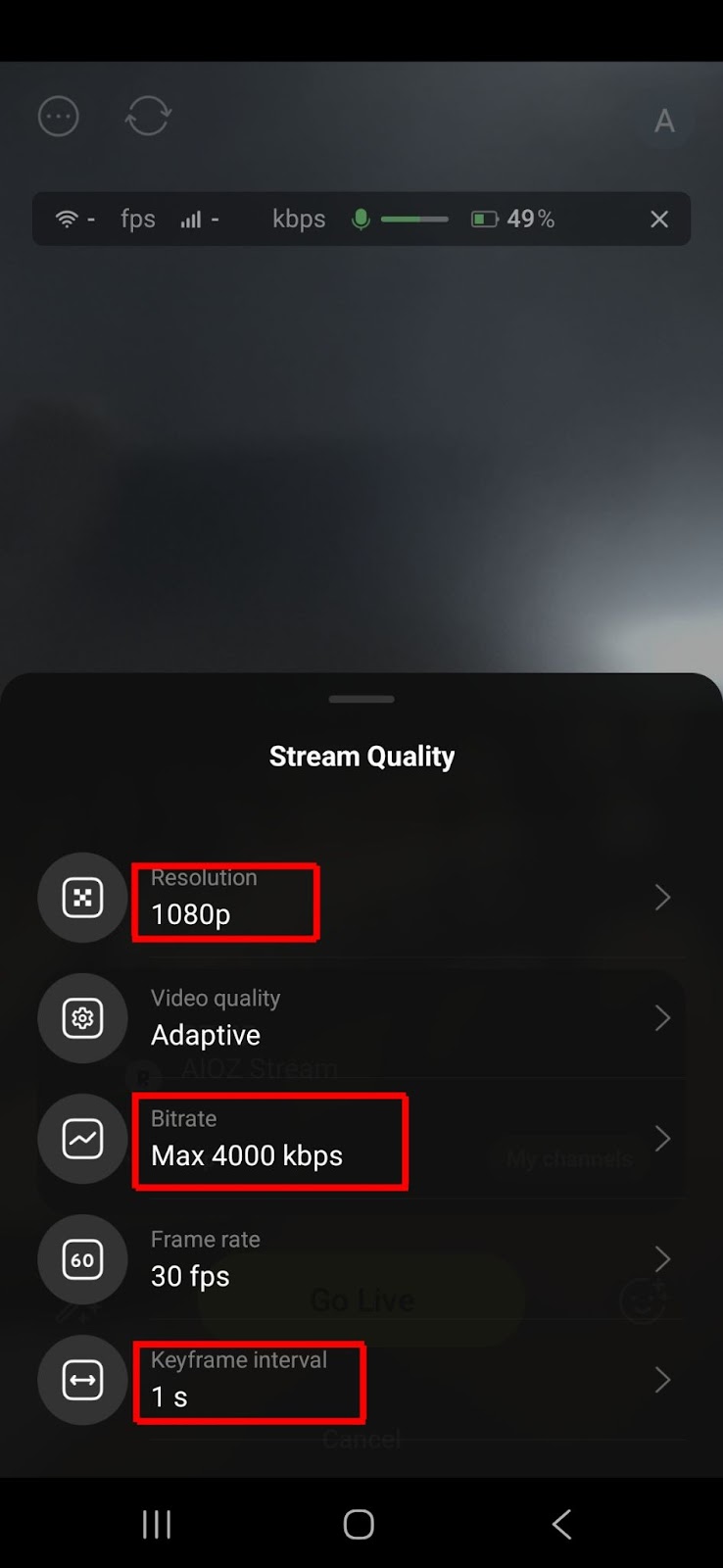
PRISM Live Studio stream quality panel displaying resolution, frame rate, and bitrate settings.
Go Live!
- Tap the yellow Go Live button in the center.
- The app will connect to AIOZ Stream, and you will be live in seconds.
- Open the AIOZ Stream Dashboard (opens in a new tab) and confirm that the stream status is active.
- Check stream health and preview (if available) before sharing the stream link.
NOTE: If a livestream did not exist before, it may appear automatically after you start streaming with valid credentials.